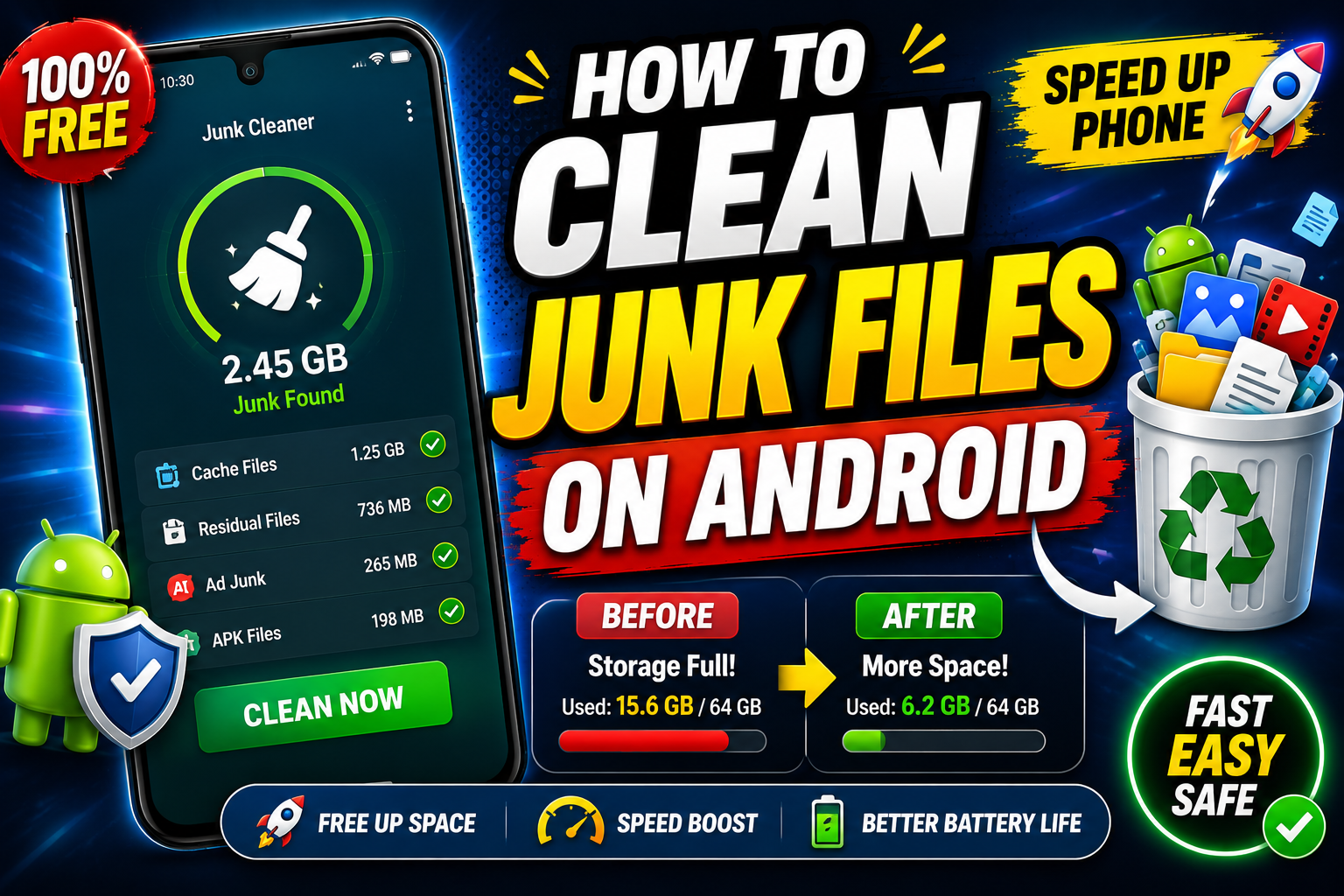
If your Android phone has become slow, keeps showing “Storage Almost Full” warnings, or apps are taking longer to open, junk files may be the reason. Over time, Android devices accumulate temporary files, cached data, leftover app files, and downloaded content that can consume valuable storage space.
In this guide, you’ll learn how to safely clean junk files on your Android phone without deleting important data.
What Are Junk Files on Android?
Junk files are unnecessary files created by the operating system and apps during normal use. These files are useful temporarily but often remain on your device after they’re no longer needed.
Common types of junk files include:
- App cache
- Temporary system files
- Old downloads
- Residual files from uninstalled apps
- Duplicate photos and videos
- Unused APK installation files
- Cached browser data
- Thumbnail cache
Why You Should Remove Junk Files
Cleaning junk files offers several benefits:
- Frees up storage space
- Improves device performance
- Helps apps run more smoothly
- Reduces lag and slowdowns
- Makes room for photos, videos, and new apps
- Can improve battery performance by reducing background storage usage
1. Use Android’s Built-in Storage Cleaner
Most Android phones include a built-in cleaning tool.
To use it:
- Open Settings.
- Tap Storage or Device Care (name varies by manufacturer).
- Select Clean, Free Up Space, or Storage Manager.
- Review the suggested files.
- Confirm the cleanup.
This method safely removes temporary files without affecting your personal data.
2. Clear App Cache
Cached files help apps load faster, but they can grow very large over time.
To clear an app’s cache:
- Open Settings.
- Go to Apps.
- Select an app.
- Tap Storage.
- Choose Clear Cache.
Repeat this for apps like:
- Chrome
- YouTube
- TikTok
- Spotify
Tip: Avoid tapping Clear Data unless you want to reset the app.
3. Delete Unnecessary Downloads
The Downloads folder often contains forgotten files.
Open the Files or My Files app and delete:
- Old PDFs
- ZIP files
- APK installers
- Duplicate images
- Large videos you no longer need
This can free up several gigabytes of storage.
4. Remove Unused Apps
Apps you no longer use continue occupying storage.
To uninstall apps:
- Open Settings.
- Tap Apps.
- Select an unused app.
- Tap Uninstall.
Focus on apps you haven’t opened in months.
5. Empty the Trash or Recycle Bin
Many gallery and file manager apps keep deleted files in a trash folder for up to 30 days.
Check:
- Gallery Trash
- Google Photos Bin
- File Manager Recycle Bin
Permanently deleting these files instantly frees storage.
6. Delete Duplicate Photos and Videos
Duplicate media files consume significant storage.
Use your gallery’s duplicate detection feature or manually review:
- Screenshots
- Burst photos
- WhatsApp forwards
- Edited copies
- Large videos
Keeping only the best versions can save a lot of space.
7. Clear Browser Cache
Web browsers store cached files that accumulate over time.
For Chrome:
- Open Chrome.
- Tap the three-dot menu.
- Select History.
- Tap Clear Browsing Data.
- Choose Cached Images and Files.
- Confirm.
This removes temporary web files while keeping your saved passwords if you leave that option unchecked.
8. Remove Old WhatsApp Media
Messaging apps often consume the most storage.
In WhatsApp:
- Open Settings.
- Tap Storage and Data.
- Select Manage Storage.
- Delete large files and unnecessary media.
Review forwarded videos and old documents before deleting.
9. Delete Leftover APK Files
APK installation files remain on your phone after app installation.
Open your Downloads folder and remove old APK files you no longer need.
10. Restart Your Phone Regularly
Restarting your Android device helps clear temporary system files and refreshes memory.
A simple restart once every few days can improve performance.
Tips to Prevent Junk Files from Building Up
To keep your Android phone running smoothly:
- Clean storage once a month.
- Remove unused apps regularly.
- Delete old downloads.
- Back up photos to cloud storage.
- Avoid installing unnecessary cleaning apps.
- Keep Android and your apps updated.
Should You Use Third-Party Cleaner Apps?
Many cleaning apps promise to speed up your phone, but Android already includes effective storage management tools.
If you choose a third-party cleaner, download it only from the Google Play Store and check reviews carefully. Avoid apps that request unnecessary permissions or display excessive ads.
Frequently Asked Questions
Is it safe to delete cache files?
Yes. Cache files are temporary and are recreated automatically when needed.
Will clearing cache delete my photos?
No. Clearing cache does not delete your personal photos, videos, or documents.
How often should I clean junk files?
For most users, cleaning junk files once every month is enough to keep the device running efficiently.
Can cleaning junk files make my phone faster?
Yes. Freeing storage and removing unnecessary files can improve responsiveness, especially on devices with limited storage.
Conclusion
Cleaning junk files on Android is one of the easiest ways to improve performance and recover valuable storage space. By clearing app cache, deleting old downloads, removing unused apps, and managing media files regularly, you can keep your phone running smoothly without installing unnecessary cleaning software.
A few minutes of maintenance each month can help your Android device stay fast, organized, and ready for everyday use.